
-
Mapsim Assistance Bot is an innovative solution designed to enhance your trading experience in MetaTrader 5. It combines hardware and software to provide seamless and efficient market interactions.
-
This product consists of three main components:
Mapsim Device (Hardware)
Mapsim Device Software
Mapsim Assistance Bot Expert (Expert Advisor for MetaTrader 5)
-
Mapsim Device :

-
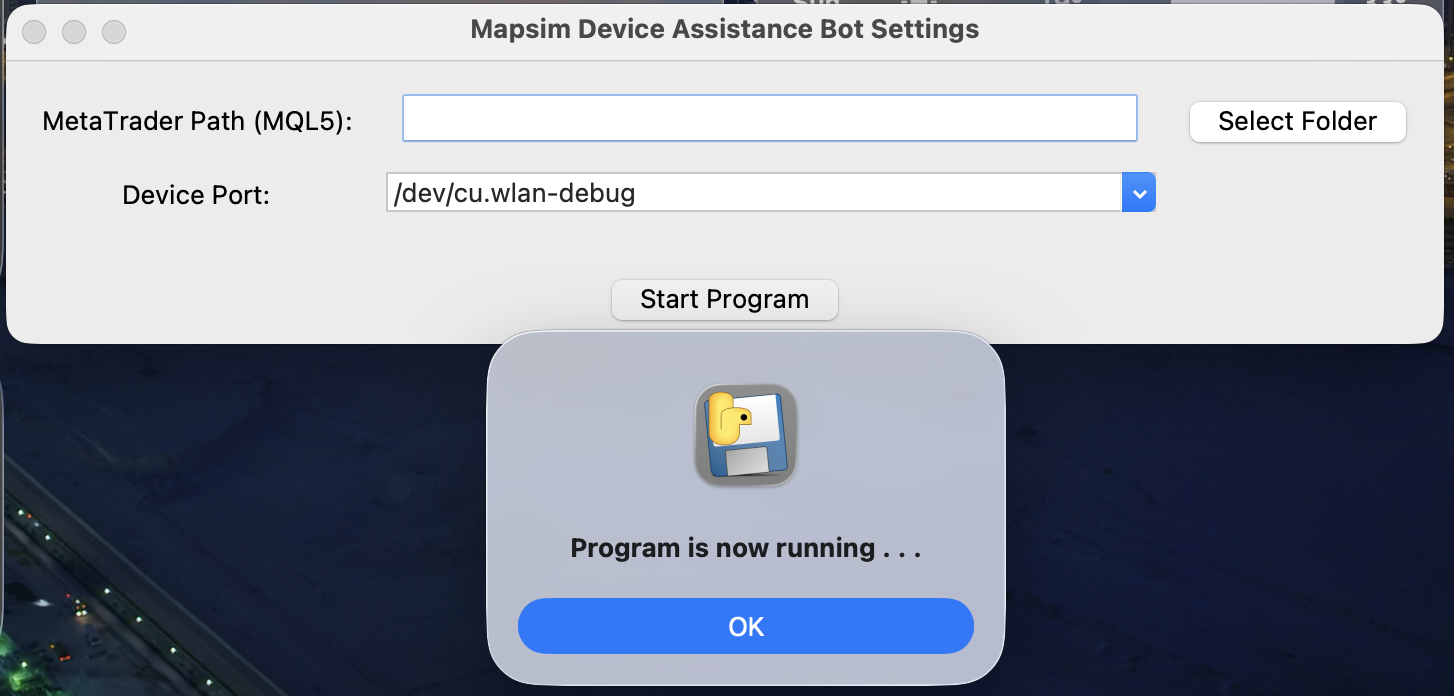
Mapsim Device Software :
-
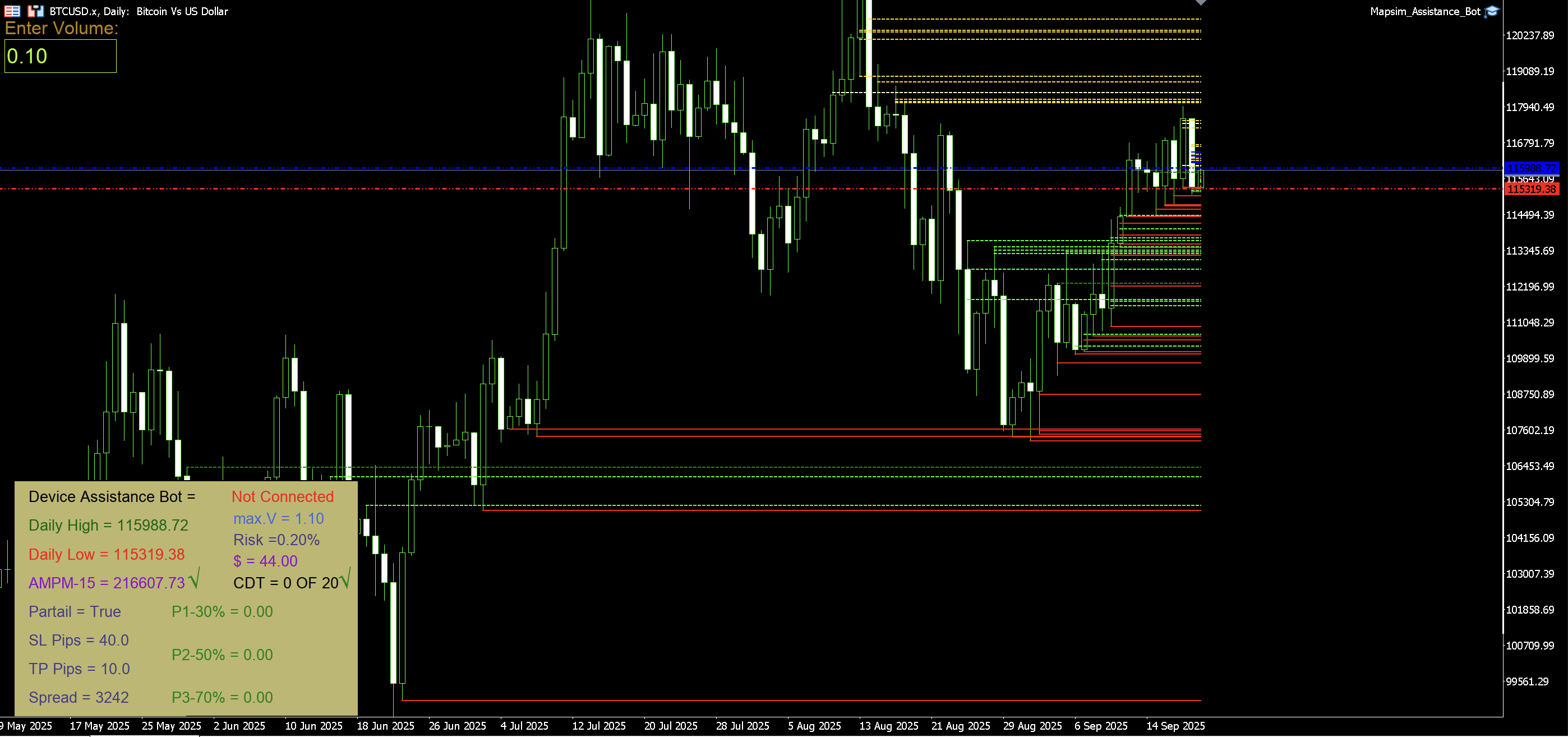
Mapsim Assistance Bot Expert :
-
Mapsim Device A hardware device that connects to your computer. Enables direct interaction with MetaTrader 5 through dedicated software.
-
Mapsim Device Software A companion application that bridges the hardware with MetaTrader 5. Must be running on your computer to use the Mapsim Device.
-
Mapsim Assistance Bot Expert An Expert Advisor (EA) for MetaTrader 5. Helps automate and streamline trading actions using the Mapsim Device.
Step 1: Download the Expert Advisor
Navigate to the File section on this repository. Download the latest version of the Mapsim Assistance Bot Expert file.
OR
- Download Zip File Expert
Step 2: Install the Expert Advisor
-
Open MetaTrader 5.
-
Go to File → Open Data Folder.
-
Navigate to :
Metatrader5/MQL5
Now copy the files from the downloaded package into the correct folders:
-
📂 Experts → copy file inside Experts → to → MQL5/Experts/
-
⚠️ Important:(maCOS / Windows Folders)If you are on Windows (32/64 bit) or macOS, make sure to copy the Expert file that matches your operating system into the MQL5/Experts/File.
-
-
📂 Libraries → copy file inside Libraries → to → MQL5/Libraries/
-
📂 Sounds → copy (Mapsim_Assistance_Bot) folder inside this → to → MetaTrader 5/Sounds/
-
Restart MetaTrader 5 to load the Expert Advisor.
- If you Not Install Meta Trader 5 In Your OS , You Can Download Free Meta Trader 5 From here
Step 3: Set Up the Mapsim Device Software Setting
Download and install the Mapsim Device Software Setting from here:
Connect the Mapsim Device to your computer via USB.
- Installation USB Driver For Windows 32 or 64 Bit In The Zip File
Launch the software before starting MetaTrader 5.
Step 4: Get The License Expert
- Go to Mapsim Bot
-
Go to Account Status Menu
- Follow Bot Commands
-
Insert Your SERIAL NUMBER in The Your Mapsim Device (QR Code & Barcod & Text)
-
Add you Account Number from the your Broker
- (🚨 You Can ONLY Get 2 Licenses Per Device On Your Broker Account Number 🚨)
-
Send your Request
-
[Receive Your License]
-
[Insert your License To Expert In MetaTrader 5]
- Activation Mapsim Assistance Bot
You Can After Make your License,Go to This Link for watch Active License:
- You can Entery From Site By Your User Name And Password From Bot
Connect: Plug in the Mapsim Device and launch the Mapsim Device Software.
Run MetaTrader 5: Open your trading terminal and attach the Mapsim Assistance Bot Expert to your desired chart.
Interact: Use the hardware device to execute trading actions like Buy, Sell,Partial Position,or Close with precision.
A read-only desktop dashboard for your MetaTrader 5 account. It reads the snapshot that the Expert Advisor writes and shows positions, recovery state, market structure, news and the event log in your browser.
The dashboard never sends orders and never writes to MetaTrader 5 or to the Expert Advisor. It only reads data.
No Python installation is required. Download one file, unpack it and run it.
macOS and Linux — paste in Terminal:
curl -fsSL https://raw.githubusercontent.com/MAPSIM-co/Mapsim_Assistance_Bot/main/Dashboard_Release/install.sh | shWindows 10/11 (64-bit) — paste in PowerShell:
irm https://raw.githubusercontent.com/MAPSIM-co/Mapsim_Assistance_Bot/main/Dashboard_Release/install.ps1 | iexThe installer detects your system, downloads the latest dashboard-v* release,
verifies its SHA-256 checksum, installs it for your user and starts it:
| System | Installed to |
|---|---|
| macOS | ~/Applications/MapsimDashboard.app |
| Linux | ~/.local/share/MapsimDashboard (plus mapsim-dashboard / Mapsim_BOT commands and an app-menu entry) |
| Windows | %LOCALAPPDATA%\MapsimDashboard (plus a Mapsim_BOT Desktop shortcut) |
After installing, manage everything from one interactive menu — it asks only when a decision is needed (local or internet, port, license, service) and does the rest itself:
Mapsim_BOT          # macOS / Linux: status, start/stop, install/update,
                    # auto-start service, access mode, license, uninstall
Mapsim_BOT.cmd # Windows (Desktop shortcut or %LOCALAPPDATA%\MapsimDashboard)The same actions are also available as installer flags (--public,
--service, --remove-service, --uninstall) — see
Dashboard_Release/README.md:
- Enter your license (required) — the dashboard runs on the same license as
the Expert Advisor. The
Mapsim_BOTlicense item (13 on macOS/Linux, 12 on Windows) takes the license code, username and password and validates them like the EA (active code, expiry, account number from the live snapshot). Without a valid license the dashboard does not start, and the web sign-in is the license username and password. - Watch the dashboard from the internet / other devices — run
Mapsim_BOTand choose 7) Access mode (local / internet) (or reinstall with--public/-Public): it binds to all network interfaces and asks for the license credentials on every request. Plain HTTP, so prefer a trusted network or put it behind HTTPS. - Start automatically after every reboot —
Mapsim_BOTmenu 5 opens the service submenu (status, install + enable, start, stop, restart, enable or disable at boot/login), or reinstall with--service/-Service: systemd on Linux, LaunchAgent on macOS, a scheduled task on Windows. Menu 6 removes the service. - Stop for real — menu 3 stops every process of the dashboard (including the child that PyInstaller onefile starts), frees the port and also stops the auto-start service, so nothing restarts in the background. Logs stay small automatically: past 256 KB only the newest lines remain.
- Install or update the Expert Advisor —
Mapsim_BOTmenu 9 finds your MetaTrader 5 folder, downloads the newest EA release and copies the expert, include files, libraries and sounds into place; menu 10 checks for a newer version and updates with one key. - Check server storage —
Mapsim_BOTmenu 11 shows every filesystem, the dashboard folder sizes and free space. The panel at the top of the menu also shows free disk space at all times (green below 75% used, yellow 75–89%, red 90% or more). - Point the dashboard at your data —
Mapsim_BOTmenu 12 (macOS/Linux) shows whichsnapshot.jsonthe dashboard reads and how old it is. It searches every Wine prefix forMQL5/Files/MapsimLive/snapshot.json; if your MT5 lives elsewhere, type the file, the MQL5 folder or the MT5 folder itself — Windows-style paths such asC:\Program Files\MetaTrader 5are translated to the rightdrive_cfolder automatically. - Keep the dashboard up to date — the version is printed in the dashboard
footer and under the title (
Dashboard Version v1.0.6). When a newer release is published, the dashboard shows a red update banner with the release-notes link, and the menu warns at start. Menu 14 on macOS/Linux (13 on Windows) chooses: notify (default), auto (download, checksum-check and install the new release by itself at the next menu start) or off. Updates never touch MetaTrader 5 or the EA. - Leave any option and go back — inside every menu option, type
0(orb/back/q) at a prompt to return to the main menu without changing anything. - Remove everything —
Mapsim_BOTmenu 8 (orinstall.sh --uninstall/install.ps1 -Uninstall) deletes the app, the auto-start service, the saved license and all logs. Nothing touches MetaTrader 5.
Open the Releases page and download the build for your system:
| System | File |
|---|---|
| Windows 10/11 (64-bit) | MapsimDashboard-windows-x64.zip |
| macOS — Apple Silicon (M1/M2/M3/M4) | MapsimDashboard-macos-arm64.zip |
| macOS — Intel | MapsimDashboard-macos-x64.zip |
| Linux (64-bit) | MapsimDashboard-linux-x64.tar.gz |
Each release also publishes a .sha256 file next to each archive so you can
verify the download.
- Install the Expert Advisor first (see Installation and Setup above) and attach it to a chart in MetaTrader 5.
- Download
MapsimDashboard-windows-x64.zipand unzip it anywhere you like (for exampleC:\MapsimDashboard). - Run
MapsimDashboard.exe. - Windows SmartScreen may warn about an unknown publisher the first time. Choose More info → Run anyway.
- Your browser opens the dashboard at
http://127.0.0.1:8765/.
The dashboard detects the default MetaTrader 5 data folder automatically
(%APPDATA%\MetaQuotes\Terminal\<instance>\MQL5\Files\MapsimLive\snapshot.json),
including portable installs under %ProgramFiles%\MetaTrader 5.
- macOS — unzip and open
MapsimDashboard.app. If macOS blocks it, right-click the app and choose Open. - Linux — unpack the archive, run
chmod +x MapsimDashboardonce, then start it.
- Start the dashboard after MetaTrader 5 and the EA are running. If several MT5 terminals or snapshots are present, the newest snapshot is used; with several terminals, start MT5 first and restart the app if the wrong one was picked.
- To use a specific file instead, start the app from a terminal with
--file /path/to/snapshot.json(or setMAPSIM_SNAPSHOT). - If port
8765is busy, start with--port 8799(or any free port). - To watch a VPS account, open the Link tab in the dashboard and connect over SFTP. The password is kept in memory only.
- Logs are written to
dashboard.login the per-user application folder (%APPDATA%\MapsimDashboardon Windows).
Full details, build instructions and troubleshooting: Dashboard_Release/README.md.
-
Operating System: Windows 32/64 Bit or later And macOS
-
Driver Mapsim Device For Windows 32/64 Bit
-
Mapsim Device Assistance Bot (213-*) Version
-
License Activation Key
-
MetaTrader Version: MetaTrader 5
-
Hardware Interface: USB
This Expert Advisor is a highly customizable Forex Trading EA that provides advanced risk management, partial close features,momentum control, and visual feedback on the chart.
-
Version V213.1.6 is Run ...
- TP/SL Management
- Set Stop Loss (SL) and Take Profit (TP) in pips
- Enable or disable automatic SL/TP
- Risk & Volume Management
- Default lot/contract size
- Automatic calculation of allowed trade volume based on account risk
- Display allowed volume according to your risk settings
- Partial Close Management
- Enable/disable partial close for Step 1, Step 2, Step 3
- Option to use Trial SL with partial steps
- Configure percentage of volume for each partial step and manual partial
- Daily Trade Control
- Limit number of trades per day (MaxDailyTrades)
- Daily profit limit (MaxDailyProfitUSD)
- Optional display of trade calculations in the output
- Momentum Management
- Market momentum calculation for trade eligibility
- Trade allowed or blocked based on momentum value
- Chart Information Display
- Information Box and Volume Box with customizable size, position, font, and color
- Daily High & Low lines
- OB+ / OB- (Order Block) lines with adjustable style, width, and color
- Delivery price lines (High, Low, Open)
- Auto Break-Even Mode
- Automatic close at break-even
- Spread buffer for safe exit
- Popup Message Management
- Error, warning, and daily P/L popup messages
- Fully customizable box size, position, color, font, sound, and display duration
For technical support or inquiries, please contact:
Email: support@mapsimco.sbs
Website: www.mapsimco.sbs
Telegram: Mapsim Bot
MIT License: MIT