
Curate, Annotate, and Manage Your Data in LightlyStudio.




We at Lightly created LightlyStudio, an open-source tool designed to unify your data workflows from curation, annotation and management in a single tool. Since we're big fans of Rust we used it to speed things up. You can work with COCO and ImageNet on a Macbook Pro with M1 and 16GB of memory!
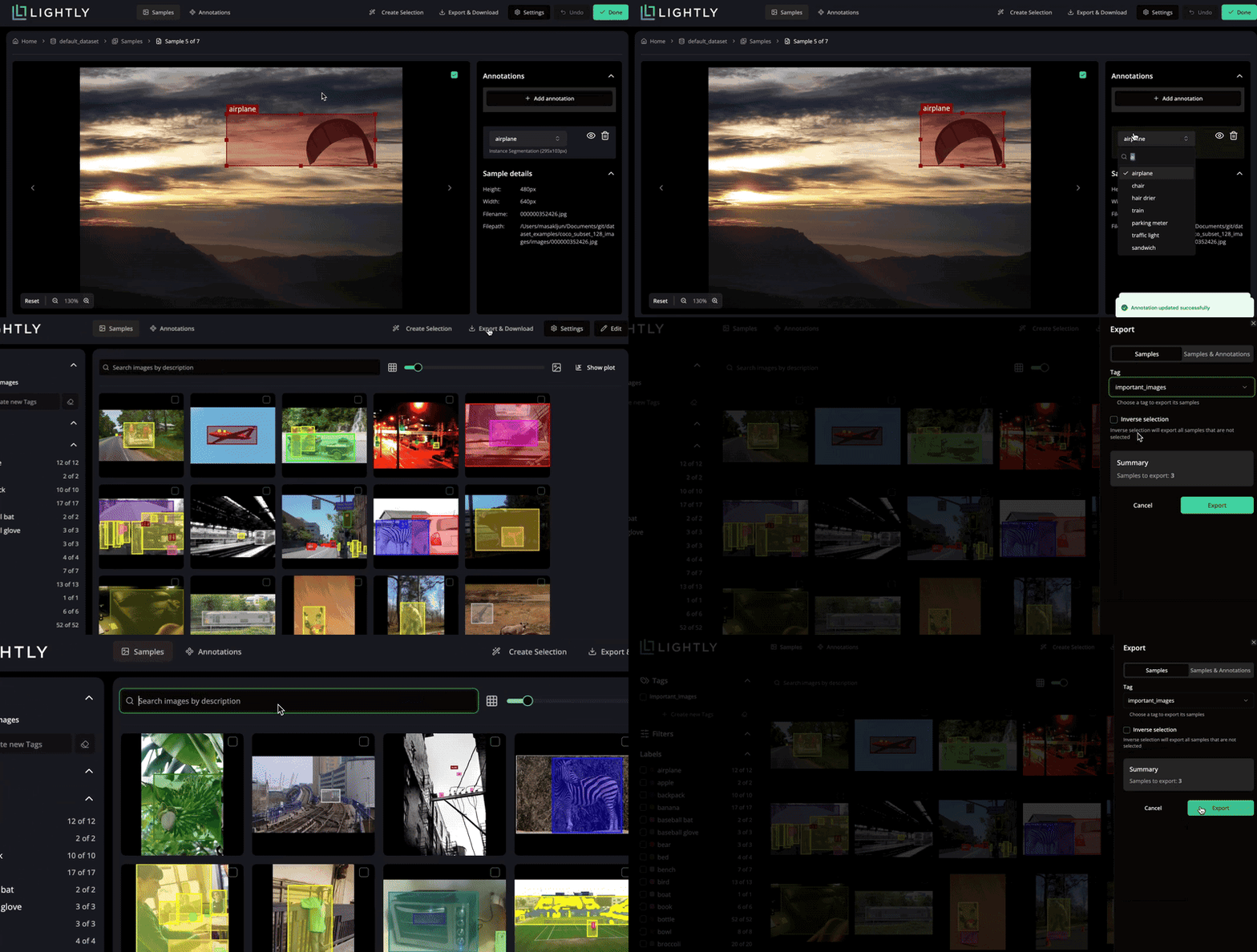
Curate, Annotate, and Manage Your Data in LightlyStudio.
Runs on Python 3.8 or higher on Windows, Linux and MacOS.
pip install lightly-studioSupported features:
| Feature / Task | Classification | Detection | Sem. Segmentation | Inst. Segmentation | Captions (img+text) | Video | Keypoints | 3D Point Clouds | Text |
|---|---|---|---|---|---|---|---|---|---|
| Visualisation | 🛠️ | ✅ | 🛠️ | ✅ | ✅ | ✅ | ❌ | 🛠️ | 🛠️ |
| Filtering | 🛠️ | ✅ | ✅ | 🛠️ | ✅ | ✅ | ❌ | 🛠️ | 🛠️ |
| Labeling | 🛠️ | ✅ | 🛠️ | 🛠️ | ✅ | 🛠️ | ❌ | ❌ | 🛠️ |
✅ - supported
🛠️ - support in progress (ETA <2 months)
❌ - not yet supported
The examples below download the required example data the first time you run them. You can also directly use your own image, video, or YOLO/COCO dataset.
To run an example using an image-only dataset, create a file named example_image.py with the following contents:
import lightly_studio as ls
from lightly_studio.utils import download_example_dataset

# Download the example dataset (will be skipped if it already exists)
dataset_path = download_example_dataset(download_dir="dataset_examples")

# Indexes the dataset, creates embeddings and stores everything in the database. Here we only load images.
dataset = ls.Dataset.create()
dataset.add_images_from_path(path=f"{dataset_path}/coco_subset_128_images/images")

# Start the UI server on localhost:8001.
# Use env variables LIGHTLY_STUDIO_HOST and LIGHTLY_STUDIO_PORT to customize it.
ls.start_gui()
Run the script with python example_image.py. Now you can inspect samples in the app.
Tagging by Folder Structure
When using dataset.add_images_from_path, you can automatically assign tags based on your folder
structure. The folder hierarchy is relative to the path argument you provide. See
our documentation for more information.
dataset.add_images_from_path(path="my_data/", tag_depth=1)Create a file named example_video.py with the following contents:
import lightly_studio as ls
from lightly_studio.utils import download_example_dataset

# Download the example dataset (will be skipped if it already exists)
dataset_path = download_example_dataset(download_dir="dataset_examples")

# Create a dataset and populate it with videos.
dataset = ls.Dataset.create(sample_type=ls.SampleType.VIDEO)
dataset.add_videos_from_path(path=f"{dataset_path}/youtube_vis_50_videos/train/videos")

# Start the UI server.
ls.start_gui()
Run the script with python example_video.py. Now you can inspect videos in the app.
To run an object detection example using a YOLO dataset, create a file named example_yolo.py:
import lightly_studio as ls
from lightly_studio.utils import download_example_dataset

# Download the example dataset (will be skipped if it already exists)
dataset_path = download_example_dataset(download_dir="dataset_examples")

dataset = ls.Dataset.create()
dataset.add_samples_from_yolo(
    data_yaml=f"{dataset_path}/road_signs_yolo/data.yaml",
)

ls.start_gui()
Run the script with python example_yolo.py. Now you can inspect samples with their assigned annotations in the app.
To run an instance segmentation example using a COCO dataset, create a file named
example_coco.py:
import lightly_studio as ls
from lightly_studio.utils import download_example_dataset

# Download the example dataset (will be skipped if it already exists)
dataset_path = download_example_dataset(download_dir="dataset_examples")

dataset = ls.Dataset.create()
dataset.add_samples_from_coco(
    annotations_json=f"{dataset_path}/coco_subset_128_images/instances_train2017.json",
    images_path=f"{dataset_path}/coco_subset_128_images/images",
    annotation_type=ls.AnnotationType.INSTANCE_SEGMENTATION,
)

ls.start_gui()
Run the script via python example_coco.py. Now you can inspect samples with their assigned annotations in the app.
To run a caption example using a COCO dataset, create a file named example_coco_captions.py:
import lightly_studio as ls
from lightly_studio.utils import download_example_dataset

# Download the example dataset (will be skipped if it already exists)
dataset_path = download_example_dataset(download_dir="dataset_examples")

dataset = ls.Dataset.create()
dataset.add_samples_from_coco_caption(
    annotations_json=f"{dataset_path}/coco_subset_128_images/captions_train2017.json",
    images_path=f"{dataset_path}/coco_subset_128_images/images",
)

ls.start_gui()
Run the script with python example_coco_captions.py. Now you can inspect samples with their assigned captions in the app.
LightlyStudio has a powerful Python interface. You can not only index datasets but also query and manipulate them using code.
To load images directly from a cloud storage provider (like AWS S3, GCS, etc.), you must first install the required dependencies:
pip install "lightly-studio[cloud-storage]"This installs the necessary libraries: s3fs (for S3), gcsfs (for GCS), and adlfs (for Azure). Our tool uses the fsspec library, which also supports other file systems. If you need a different provider (like FTP, SSH, etc.), you can find the required library in the fsspec documentation and install it manually (e.g., pip install sftpfs).
Current Support Limitations:
- Images: Your images can be located in a cloud bucket (e.g.,
s3://my-bucket/images/) - Videos: Your video files must currently be local. Cloud support is coming soon.
- Annotations (Labels): Your annotation files (like
labels.jsonor alabels/directory) must be local on your machine. Loading annotations from cloud storage is not yet supported.
The dataset is the main entity of the python interface. It is used to setup the dataset, start the GUI, run queries and perform selections. It holds the connection to the database file.
import lightly_studio as ls

# Different loading options:
dataset = ls.Dataset.create()

# You can load data also from cloud storage
dataset.add_images_from_path(path="s3://my-bucket/path/to/images/")

# And at any given time you can append more data (even across sources)
dataset.add_images_from_path(path="gcs://my-bucket-2/path/to/more-images/")
dataset.add_images_from_path(path="local-folder/some-data-not-in-the-cloud-yet")

# Load existing .db file
dataset = ls.Dataset.load()Datasets persist in a DuckDB file (lightly_studio.db by default). All tags, annotations, captions, metadata, and embeddings are saved, so you can stop and resume anytime. Use Dataset.load_or_create to reopen existing datasets:
from __future__ import annotations

import lightly_studio as ls

dataset = ls.Dataset.load_or_create(name="my-dataset")

# Only new samples are added by `add_images_from_path`
for image_dir in IMAGE_DIRS:
    dataset.add_images_from_path(path=image_dir)

ls.start_gui()
Notes:
- The first time you run this script a new db is created and the data indexed
- If you add more images to the folder only the new data is indexed
- All annotations, tags, and metadata persist across sessions as long as the
lightly_studio.dbfile in the working dir exists.
To use a different database file, initialize the database manager before creating datasets:
import lightly_studio as ls

ls.db_manager.connect(db_file="lightly_studio.db")
dataset = ls.Dataset.load_or_create(name=DATASET_NAME)A sample is a single data instance, a dataset holds the reference to all samples. One can access samples individually and read or write on a samples attributes.
# Iterating over the data in the dataset
for sample in dataset:
   # Access the sample: see next section

# Get all samples as list
samples = list(dataset)

# Access sample attributes
s = samples[0]
s.sample_id        # Sample ID (UUID)
s.file_name        # Image file name (str), e.g. "img1.png"
s.file_path_abs    # Full image file path (str), e.g. "full/path/img1.png"
s.tags             # The set of sample tags (set[str]), e.g. {"tag1", "tag2"}
s.metadata["key"]  # dict-like access for metadata (any)

# Set sample attributes
s.tags = {"tag1", "tag2"}
s.metadata["key"] = 123

# Adding/removing tags
s.add_tag("some_tag")
s.remove_tag("some_tag")

...
Dataset queries are a combination of filtering, sorting and slicing operations. For this the Expressions are used.
from lightly_studio.core.dataset_query import AND, OR, NOT, OrderByField, SampleField

# QUERY: Define a lazy query, composed by: match, order_by, slice
# match: Find all samples that need labeling plus small samples (< 500px) that haven't been reviewed.
query = dataset.match(
    OR(
        AND(
            SampleField.width < 500,
            NOT(SampleField.tags.contains("reviewed"))
        ),
        SampleField.tags.contains("needs-labeling")
    )
)

# order_by: Sort the samples by their width descending.
query.order_by(
    OrderByField(SampleField.width).desc()
)

# slice: Extract a slice of samples.
query[10:20]

# chaining: The query can also be constructed in chained way
query = dataset.match(...).order_by(...)[...]

# Ways to consume the query
# Tag this subset for easy filtering in the UI.
query.add_tag("needs-review")

# Iterate over resulting samples
for sample in query:
    # Access the sample: see previous section

# Collect all resulting samples as list
samples = query.to_list()

# Export all resulting samples in coco format
query.export().to_coco_object_detections()LightlyStudio offers a premium feature to perform automated data selection. Contact us to get access to premium features. Selecting the right subset of your data can save labeling cost and training time while improving model quality. Selection in LightlyStudio automatically picks the most useful samples - those that are both representative (typical) and diverse (novel).
You can mix and match these strategies to fit your goal: stable core data, edge cases, or fixing class imbalances.
from lightly_studio.selection.selection_config import (
    MetadataWeightingStrategy,
    EmbeddingDiversityStrategy,
    AnnotationClassBalancingStrategy,
)

...

# Compute typicality and store it as `typicality` metadata
dataset.compute_typicality_metadata(metadata_name="typicality")

# Select 10 samples by combining typicality, diversity, and class balancing.
dataset.query().selection().multi_strategies(
    n_samples_to_select=10,
    selection_result_tag_name="multi_strategy_selection",
    selection_strategies=[
        MetadataWeightingStrategy(metadata_key="typicality", strength=1.0),
        EmbeddingDiversityStrategy(embedding_model_name="my_model_name", strength=2.0),
        AnnotationClassBalancingStrategy(target_distribution="uniform", strength=1.0),
    ],
)We welcome contributions! Please check our issues page for current tasks and improvements, or propose new issues yourself.





