Tutorials Export
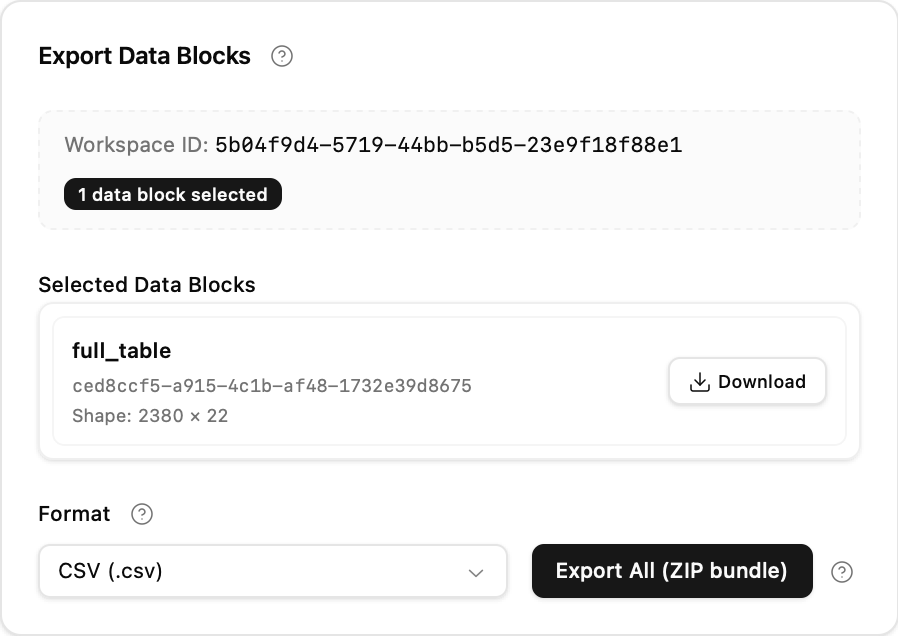
Export lets you download any number of Data Blocks for offline analysis or sharing. A single selection downloads as one file. Two or more selections are packaged by the backend into one ZIP containing one file per Data Block.
Use Add data block to choose individual Data Blocks, Add preset to use a graph selection, or Add All to select every remaining Data Block. There is no selector maximum. Remove a card or use Clear all to change the selection.
Use the Format dropdown to choose the output file format:
| Format | Extension | Best used for |
|---|---|---|
| CSV | .csv | Maximum compatibility; opens in any spreadsheet or text editor |
| JSON | .json | Hierarchical or nested data; web and API workflows |
| NDJSON | .ndjson | Streaming JSON; one JSON object per line |
| Parquet | .parquet | Efficient columnar storage; best for large datasets or re-importing into the app |
| Arrow IPC | .arrow | High-performance binary format for data pipeline use |
The same format applies to all blocks in a bundle export.
Click Export 1 Data Block to download one file directly in the selected format.
For a shortcut anywhere in the Workspace graph, open a Data Block's node menu, choose Export, select the format in the dialog, and click Export. This shortcut always exports that one Data Block directly.
With two or more selections, the action becomes Export N Data Blocks. The backend writes every Data Block in the selected format and returns one ZIP in the same order. Files inside the ZIP are named after their Data Blocks, with a numeric suffix when names collide.
Export workspace archive remains a separate action. It exports the complete portable Workspace, including its graph, Tabs, Analyses, and Data Blocks, for later import into Wordflow.
| Symptom | Likely cause | What to try |
|---|---|---|
| Download button does nothing | Browser blocked the download | Check browser download permissions or pop-up blocker settings |
| File opens with garbled characters | Character encoding mismatch | Re-open the CSV in your tool and specify UTF-8 encoding |
| Parquet file unreadable | Tool does not support Parquet | Use pandas, DuckDB, or re-import into this app instead |
| Setting | Default | Notes |
|---|---|---|
| Format | CSV | Change to match your downstream tool |
- Add one Data Block, choose CSV, and export it as a direct download.
- Add a second Data Block and export again; confirm the download is a ZIP.
- Open the ZIP and confirm that it contains one CSV per selected Data Block.
- Choose Parquet, use Add All, and export every Data Block together.