Tutorials Preprocessing
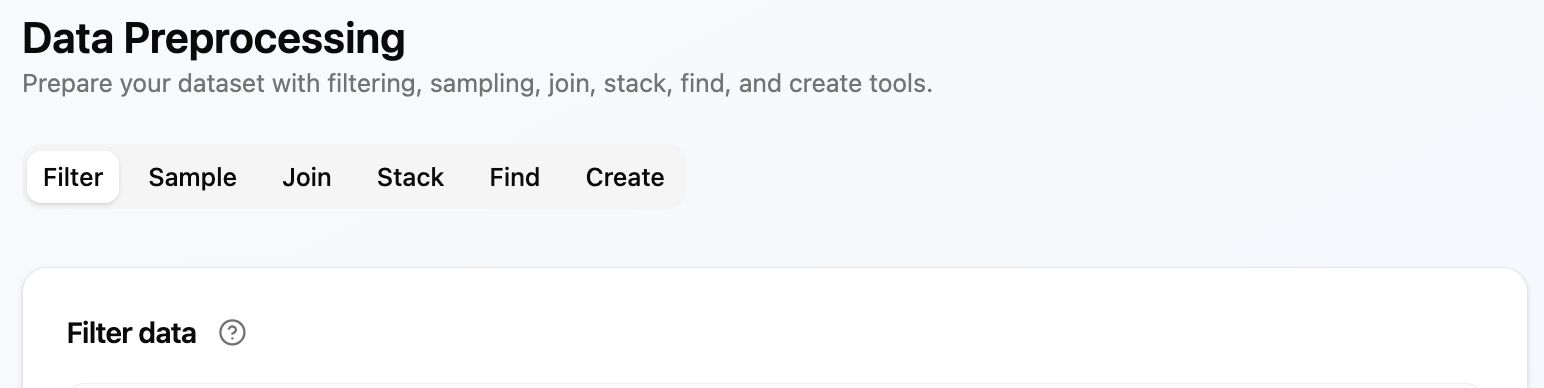
The Preprocessing tools transform and prepare raw text data blocks into analysis-ready datasets. Each sub-tab performs a specific type of transformation. Filter, Find, Create, and Expression can either create a new Data Block or update the selected Data Block. Sample, Join, and Stack always create a new Derived Data Block. There are currently seven sub-tabs:
| Sub-tab | What it does | Apply behavior |
|---|---|---|
| Filter | Keep only the rows that match one or more conditions | Create or update |
| Sample | Extract a contiguous slice or a random subset of rows | Create only |
| Join | Combine two data blocks side-by-side on a shared column | Create only |
| Stack | Vertically concatenate two data blocks that share the same columns | Create only |
| Find | Match text patterns with Regular Expressions, then remove, replace, or extract matches | Create or update |
| Create | Build a new column by combining the contents of existing columns | Create or update |
| Expression | Compose validated typed expression items for advanced transformations | Create or update |
The general workflow for any sub-tab is:
- Select one or more data blocks from the workspace.
- Configure the transformation.
- Review the Preview table to check the expected output.
- For an eligible tool, choose Create new Data Block or Update selected Data Block under Apply result as.
- Click Create Data Block or Update Data Block.
These controls appear across multiple sub-tabs and work the same way throughout.
Select one or more data blocks from the workspace graph or the data block list. Each sub-tab requires a specific number of data blocks (one for Filter, Sample, Find, Create; two for Join, Stack).
The preview pane shows the result of the current configuration in a paginated format with an estimated row count. Check the preview before applying to confirm the output looks as expected. No data block is created until you click the action button.
For Filter, Find, Create, and Expression, Create new Data Block is selected by default. It preserves the source and records the new block's creation lineage. Choose Update selected Data Block only when you deliberately want to replace the selected block's current execution plan. The choice remains available for repeated applies in the same tool and source, but resets to Create when you change the tool or selected Data Block. It is not saved as a preference.
Sample (including Slice, Random Sample, and Shuffle), Join, and Stack have no update mode and always create Derived Data Blocks.
An update keeps the selected Data Block's identity, graph edges, parents, descendants, and creation provenance unchanged. Descendants keep their existing independent plans and are not recomputed. Undo/Redo stores only plans for the current open Workspace session, up to 50 edits per Data Block. Closing and reopening the Workspace, importing it, or restarting the backend preserves the latest data but clears Undo/Redo history.
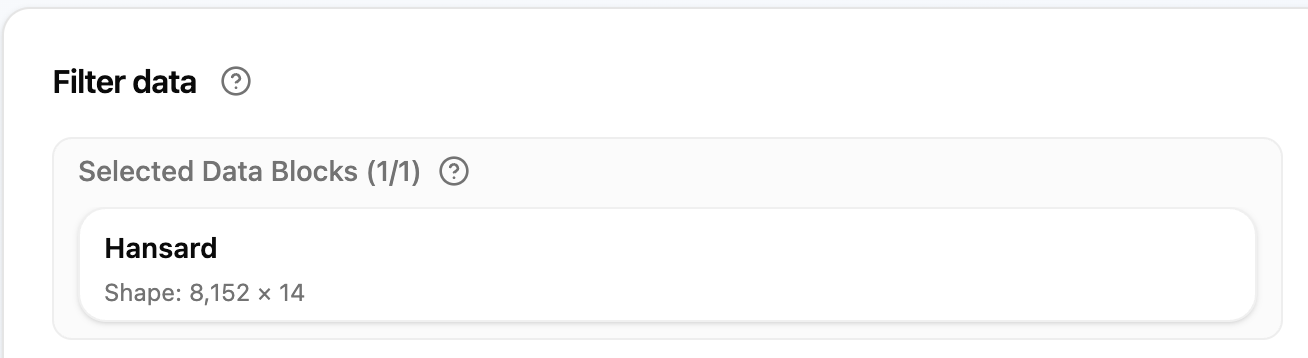
The Filter sub-tab keeps only the rows that match defined conditions. Use it to remove noise, focus on a subset, or create a clean working dataset before analysis.
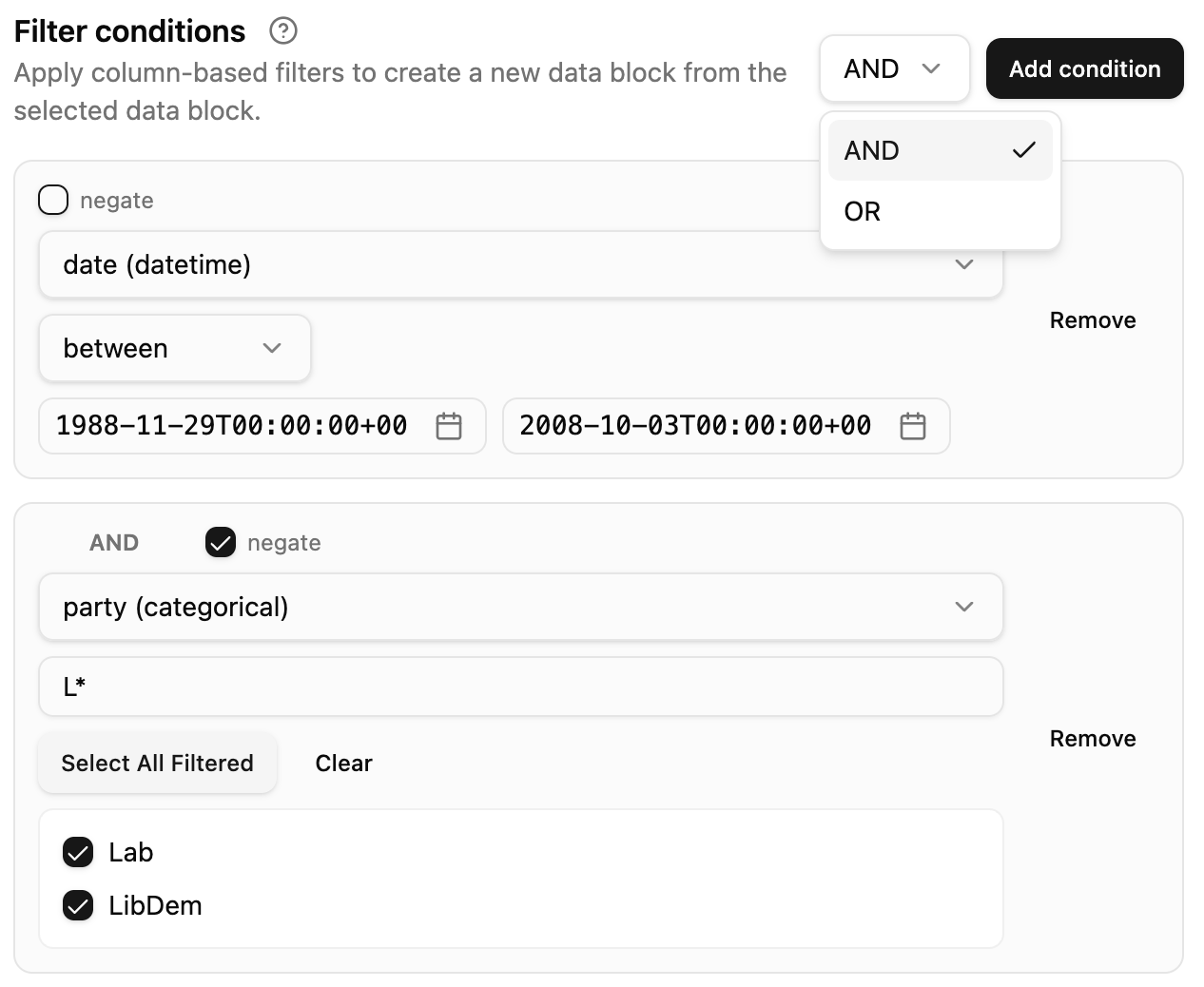
Define one or more column-based filter conditions. The behaviour of each condition depends on the data type of the selected column. All conditions are combined using either AND or OR logic (mixed logic chains are not supported).
- Click Add Condition to add more conditions.
- Select AND or OR to control how conditions are combined.
- Check Negate on any individual condition to invert it.
- The preview shows how many rows the current condition set would keep. An empty result is possible if no rows satisfy the conditions or if conditions conflict.
- Categorical values load in ordered pages. Scroll to load more, use search to filter on the server, and use Select loaded to select only the values currently available. Existing selections remain selected across searches.

In create mode, give the filtered output a descriptive name so it is easy to find in the workspace. The new block is a child of the selected source block. This field is hidden in update mode because the selected Data Block keeps its existing identity and name.
Practice exercise
- Select a dataset with a clear category column.
- Add a condition that keeps only one category.
- Add the filtered result as a new data block and confirm the row count in the preview.
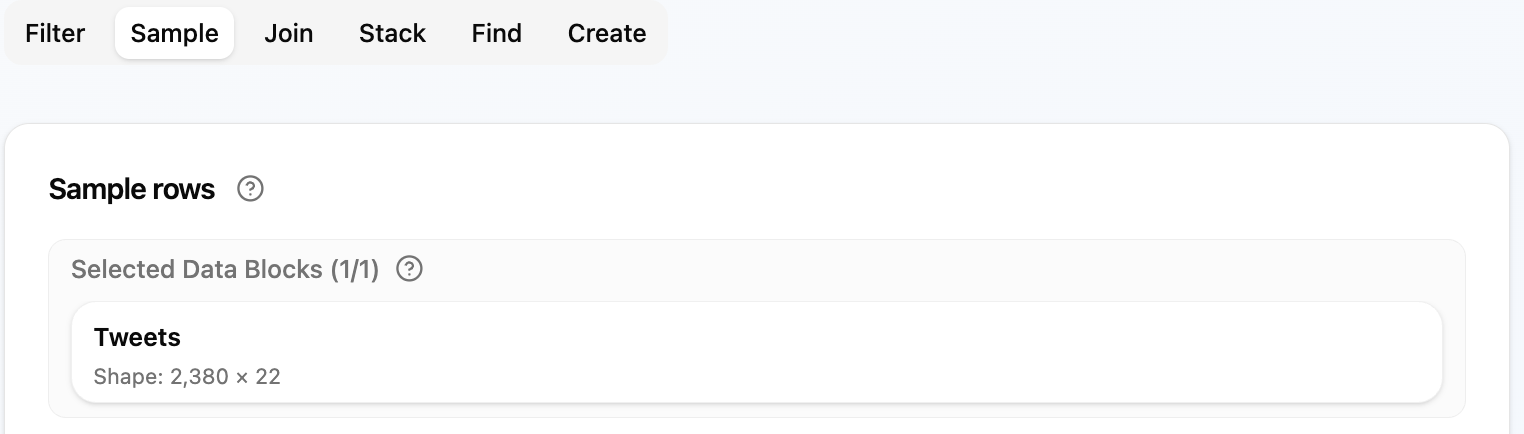
The Sample sub-tab extracts either a contiguous range or a randomly selected set of rows. A small representative subset makes exploring and debugging quicker than working with the full dataset.
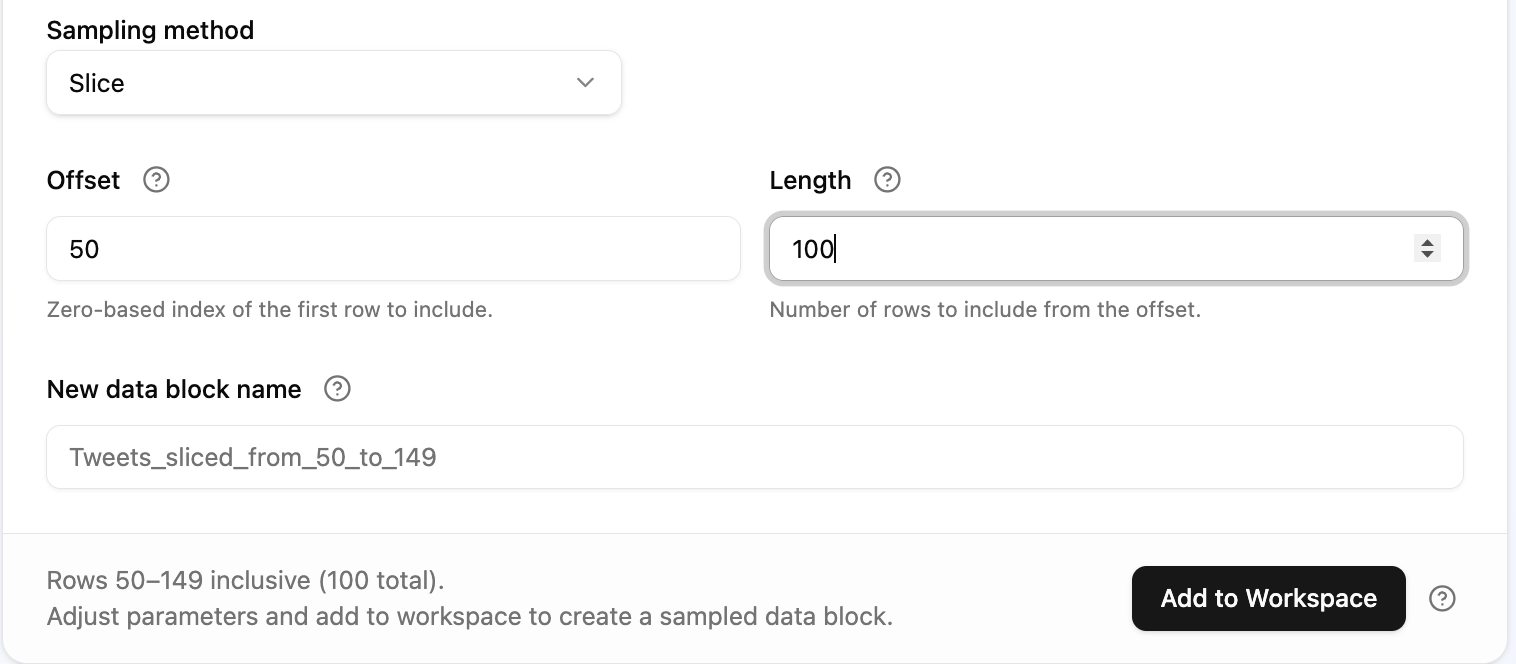
The slice option extracts a contiguous chunk of rows. Offset sets the starting row (0-indexed) and Length sets how many rows to include. Leave Length blank to slice to the end of the data block. For example, to extract rows 101–200 set Offset = 100 and Length = 100.
The number of rows to include in the slice. Leave blank to slice from the offset to the end of the data block.
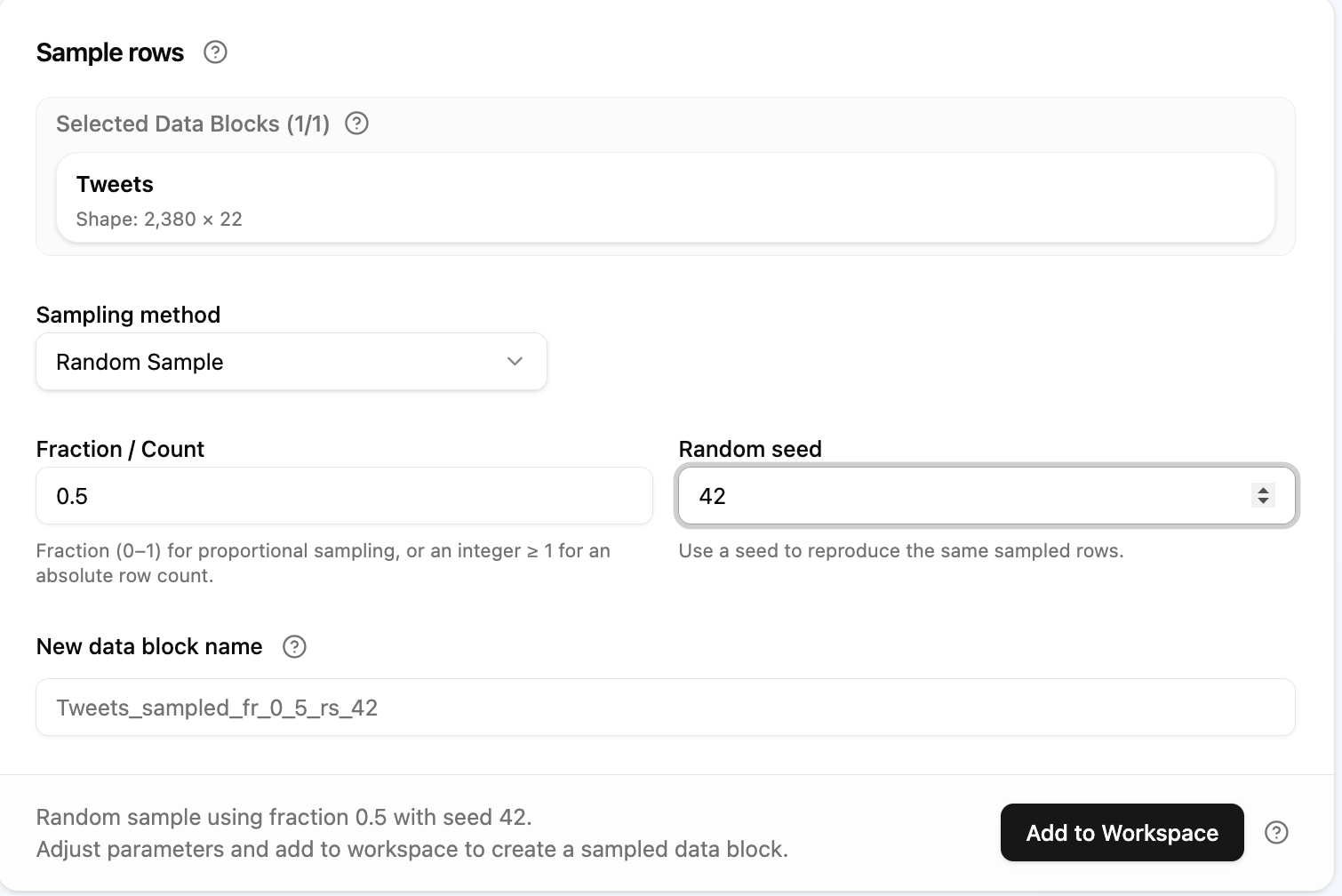
The random sample option extracts a randomly selected set of rows.
- Fraction — enter a decimal between 0 and 1 (e.g. 0.3 for 30 % of rows).
- Count — enter a whole number of rows to extract (e.g. 500). If the count exceeds the data block size, all rows are returned in shuffled order.
The random seed controls reproducibility. Using the same seed on the same data always produces the same rows.
- Use any non-negative integer (e.g. 0).
- Check No Random Seed to draw a truly random sample — note that this makes the sample irreproducible and the randomness propagates to all derived child data blocks.
The pre-populated name includes the sampling parameters. Edit it if you need a more descriptive label. Sample is create-only.
Practice exercise
- Select a dataset with at least 200 rows.
- Try Slice with Offset 50 and Length 25, then try Random Sample with Fraction 0.2 and a fixed seed.
- Add each result as a new data block and compare the row counts.
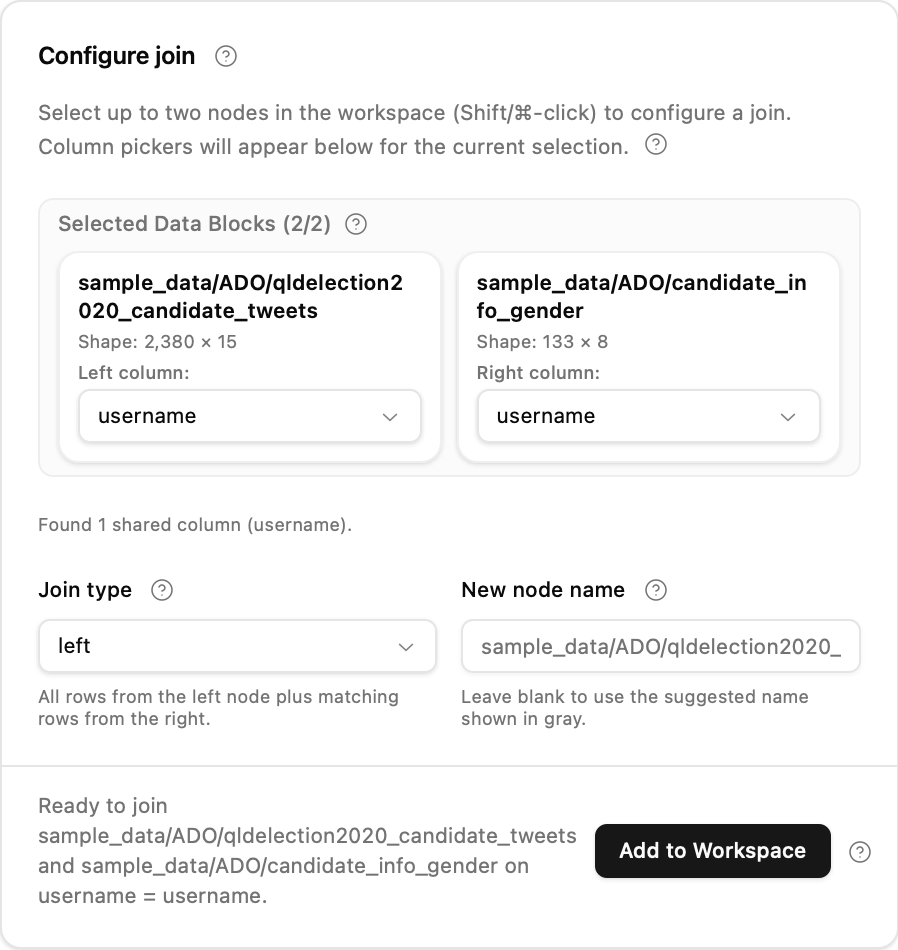
The Join sub-tab combines two data blocks side-by-side using matching columns. Use it when your text data is in one block and metadata is in another, or when you need to enrich a block before analysis. The result includes all columns from both blocks, making it wider than either source.
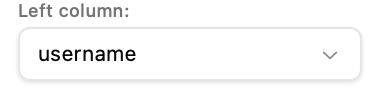
Choose which column to match in each data block. The app pre-populates the most likely shared columns, but you are responsible for selecting the correct joining columns. Use clean, consistent identifier columns for the best results.
Join type controls how unmatched rows are handled:
| Type | Keeps |
|---|---|
| Inner | Only rows with a match in both blocks |
| Left | All rows from the left block; matched rows from the right |
| Right | All rows from the right block; matched rows from the left |
| Full | All rows from both blocks; unmatched values become nulls |
| Semi | Left-block rows that have at least one match in the right |
| Anti | Left-block rows with no match in the right |
| Cross | Cartesian product of both blocks (can be very large) |
Give the joined output a clear name. Leave it blank to use the auto-generated suggestion. Join is create-only.
Practice exercise
- Select two datasets that share an identifier column.
- Pick that column in both column pickers and run an Inner join.
- Compare the row count in the preview against both source blocks.
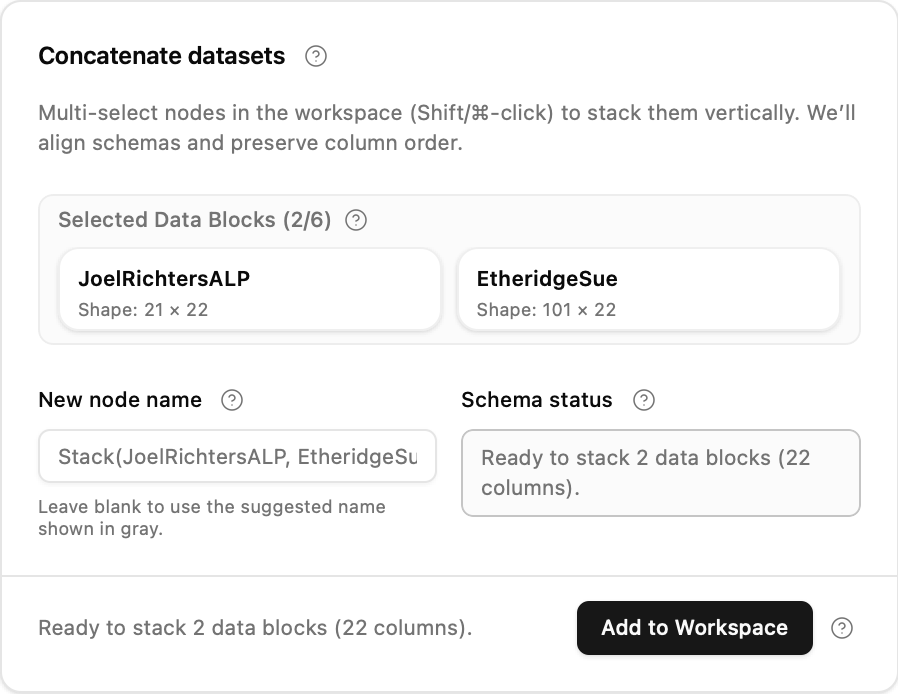
The Stack sub-tab vertically concatenates two or more data blocks. Use it when you want to merge data blocks with identical column structures into one longer block.
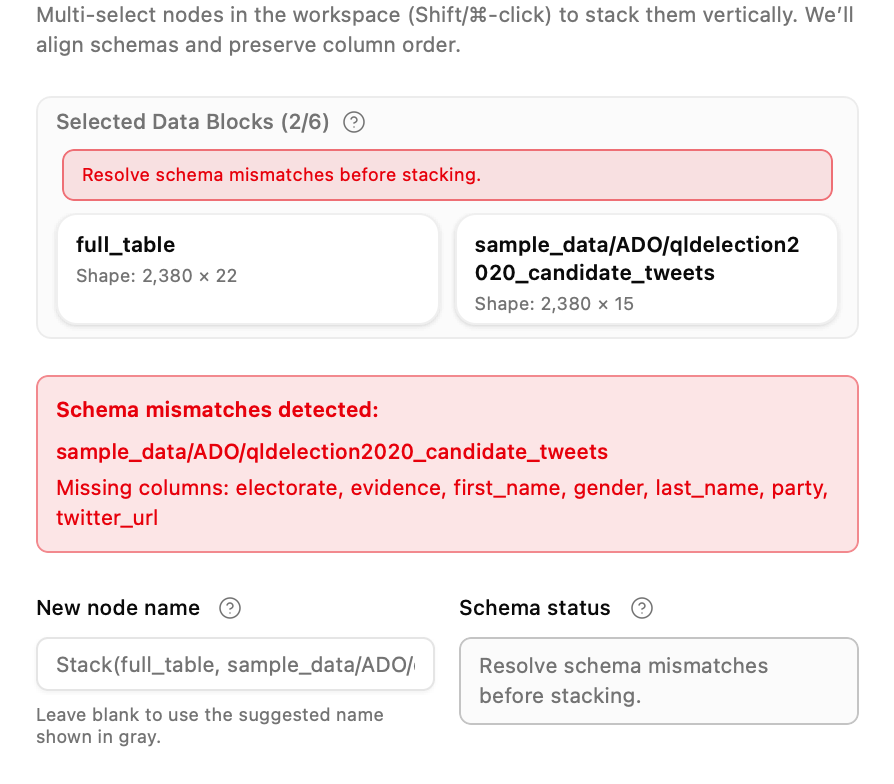
The schema status panel tells you whether all selected data blocks share the same column structure and highlights any mismatches. Resolve mismatches (e.g. by renaming or removing columns) before stacking.
Tick Drop duplicate rows after stacking to remove exact duplicate rows from the stacked result. Two rows count as duplicates only when every column matches. Useful when stacking sources that may share overlapping records (e.g. partial dumps of the same dataset).
Provide a label for the stacked output. Leave it blank to use the auto-generated suggestion. Stack is create-only.
Practice exercise
- Select two datasets with the same column structure.
- Review the schema status to confirm no mismatches.
- Add the stacked result and confirm the row count equals the sum of both sources.
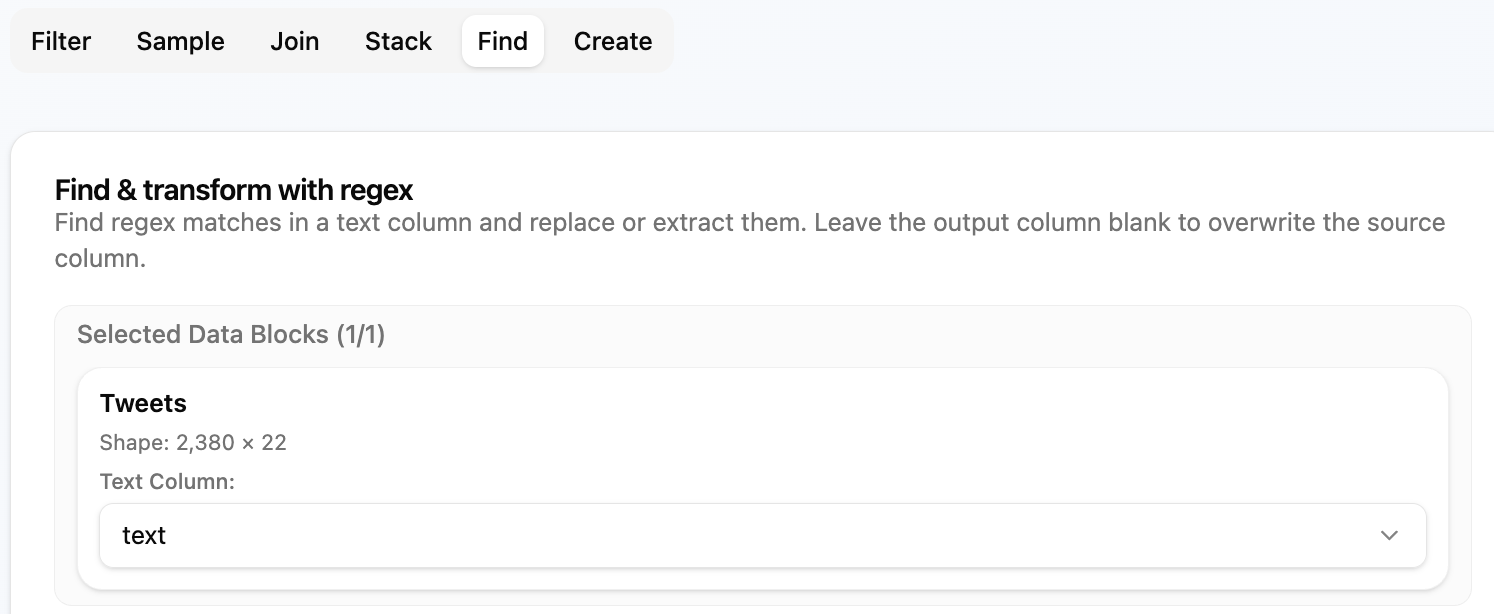
The Find sub-tab performs text manipulation on a selected column using Regular Expressions (RegEx). It supports two operations — Replace and Extract — and the transformation can overwrite the source column or write an output column. Separately, Apply result as decides whether the transformed plan creates a Data Block or updates the selected one.
Replace
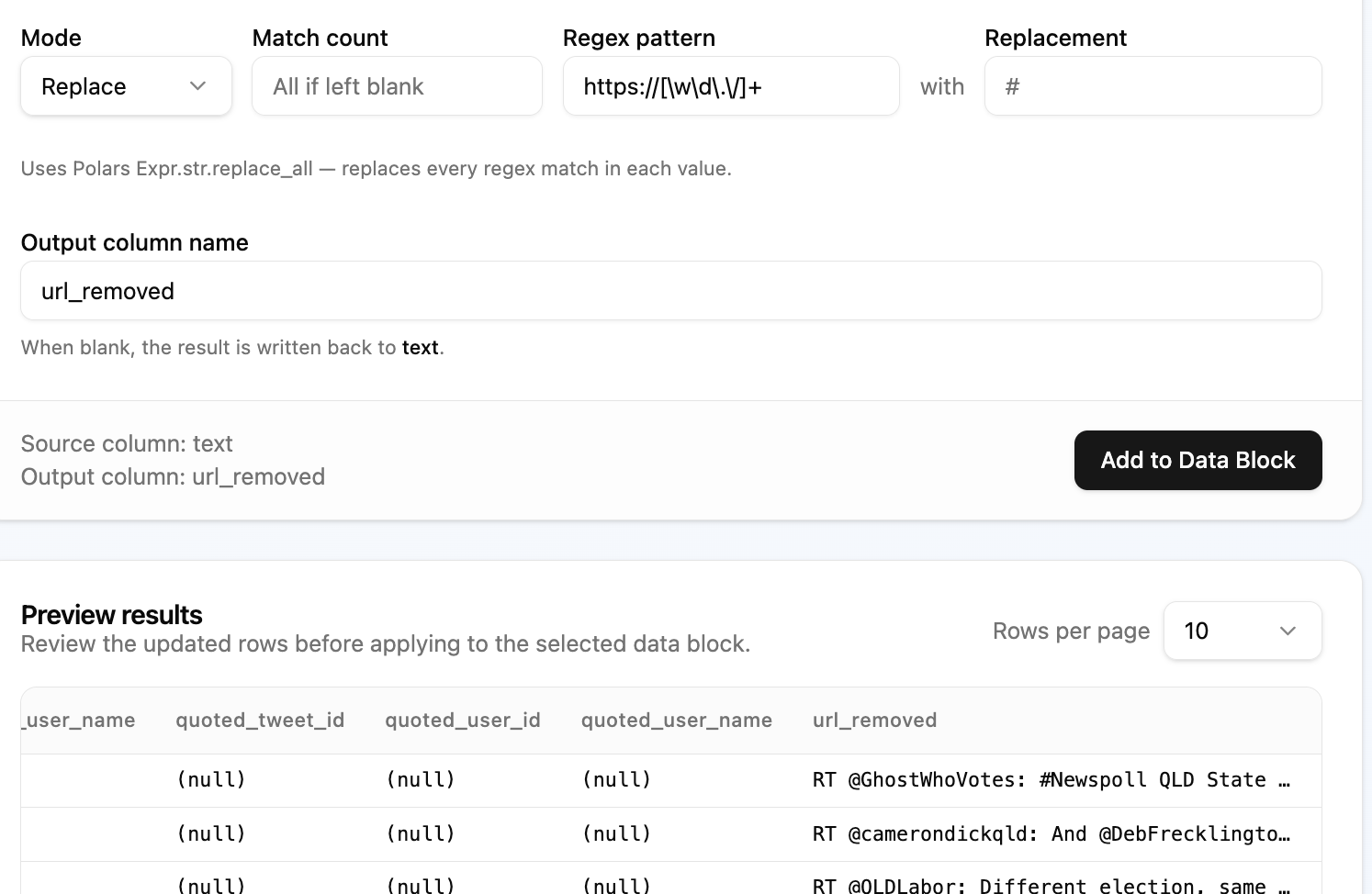
Match a pattern and replace each match with a fixed string. To delete matched text, replace with an empty string. For example, to remove all URLs from a column, match https?://\S+ and replace with an empty string.
Extract
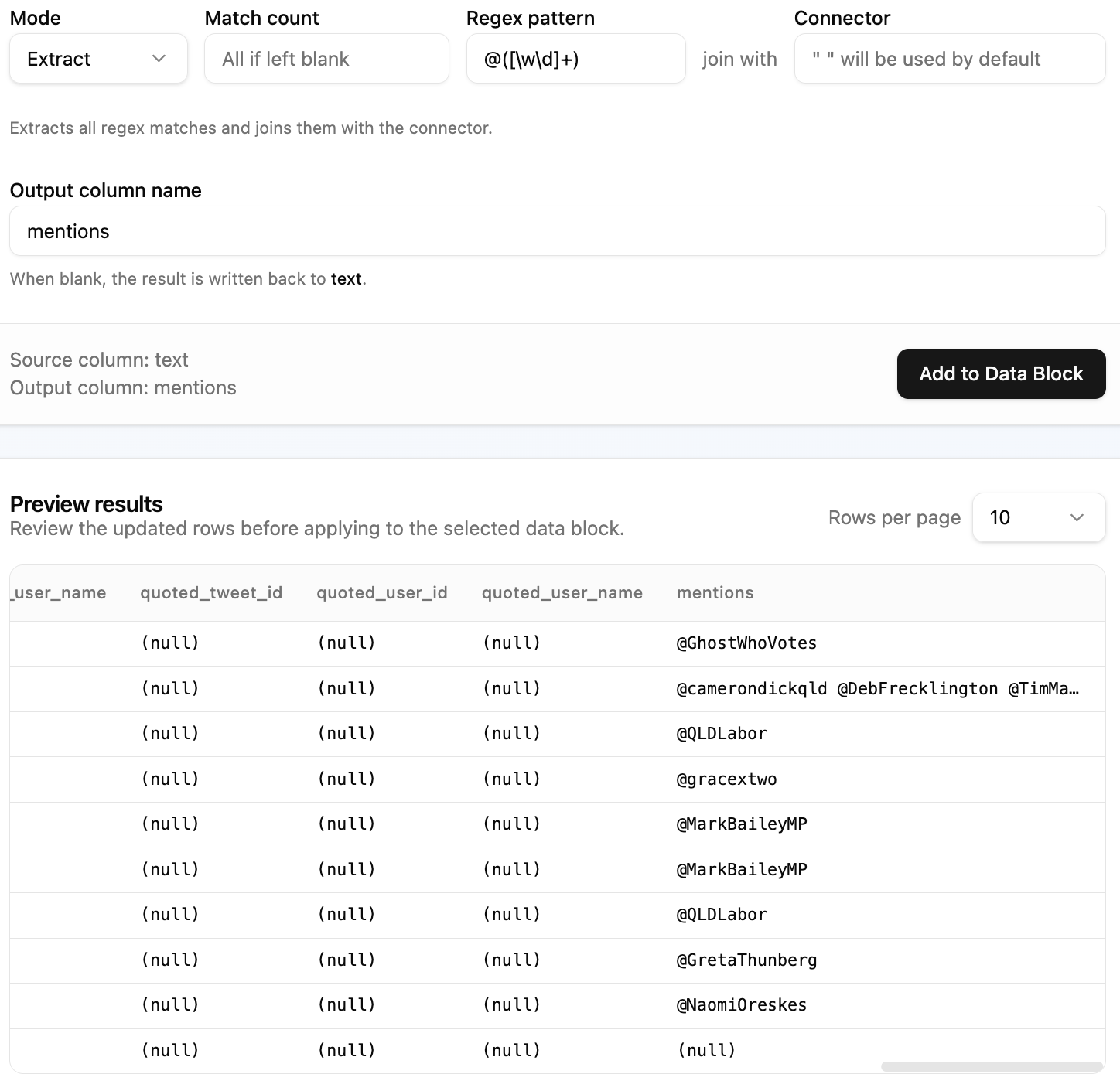
Match a pattern and extract all captured matches into a new column. For example, to extract all @-mentions from a tweet column, match @\w+ and save to a new column named mentioned.
Practice exercise
- Select a dataset with a text column that contains noise (e.g. XML tags, URLs).
- Write a RegEx pattern to match the noise and replace it with an empty string.
- Review the preview, choose create or update mode, and apply the result.
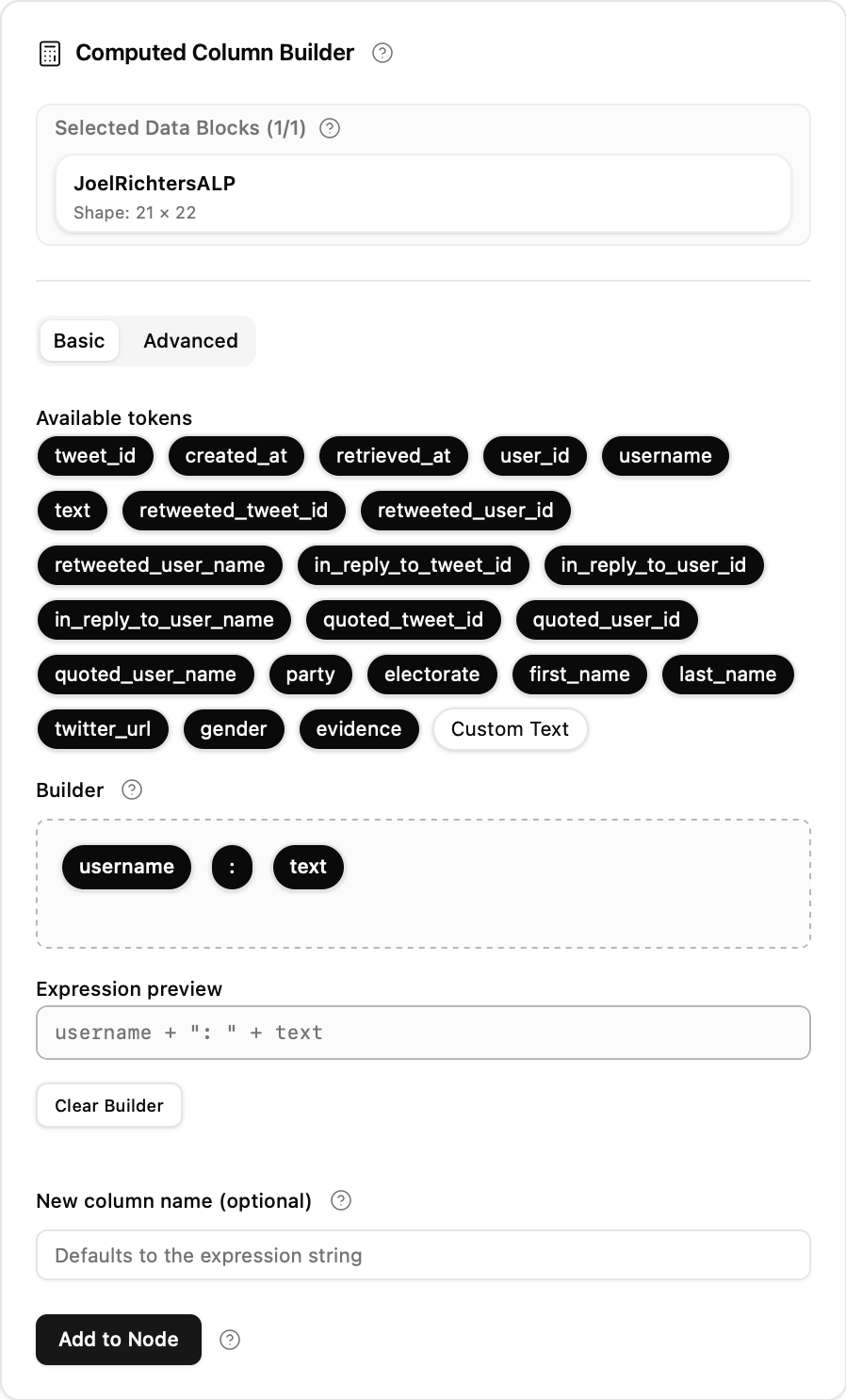
The Create sub-tab builds new columns by combining the contents of existing columns as text. Use it when you need to analyse multiple columns together — for example, concatenating a title and a body into a single full-text column for topic modelling.
Drag column tokens and custom text blocks into the builder to assemble the expression without typing.
- Drag column bubbles into the builder to add them to the expression.
- Add a Custom Text bubble for separators or literals, then click it to edit the value.
- Reorder bubbles by dragging them to a new position.
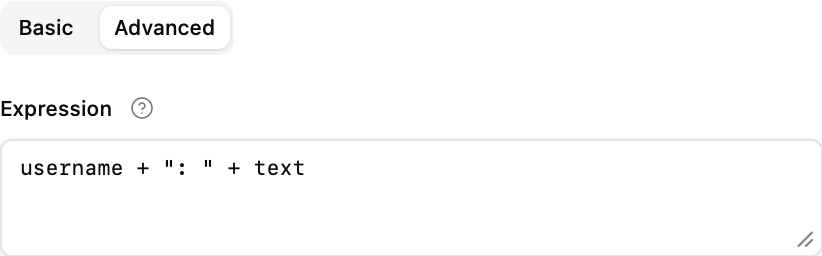
Use the Advanced tab for full control, including helper functions and conditional logic.
- Reference columns by name (
title) or in quotes if the name contains spaces ("Total Count"). - Combine values with
+. - Use helpers such as
abs(),round(value, 2),when(condition, then, otherwise),coalesce(a, b). - Use
lit("value")to force a literal string when it would otherwise be interpreted as a column name.
Set a clear label for the new column so it is easy to find downstream. This is a transformation field and remains available in both create and update modes.
Practice exercise
- Select a dataset with a title column and a body or abstract column.
- Use the Basic builder to drag both columns into the expression with a space separator.
- Preview the combined column, choose create or update mode, then apply it.
The Expression sub-tab accepts JSON expression items from Wordflow's generated typed-expression contract. Raw Python and executable Polars source are not accepted. Each item contains an expression object with an op; optional item fields such as alias and the separate Sort direction control shape the output.
Five context modes are available:
| Mode | What it does |
|---|---|
| Filter | Supply a boolean expression to keep only matching rows |
| With Columns | Add or overwrite columns using one or more expressions |
| Select | Choose and transform specific columns |
| Sort | Sort by one or more expressions, with optional descending order |
| Group By | Group by a key expression and apply aggregations |
Each mode displays a typed JSON example. Click Preview to validate and inspect results, choose create or update mode, then click Create Data Block or Update Data Block. The new-Data-Block name field is shown only in create mode.
Practice exercise
- Select a dataset and switch to the Filter context.
- Enter
{"expression":{"op":"gt","left":{"op":"column","name":"word_count"},"right":{"op":"literal","value":100}}}. - Click Preview to inspect the filtered rows, then choose whether to create a Derived Data Block or update the selected Data Block.